The Next Generation x2

This is default featured slide 1 title

Go to Blogger edit html and find these sentences.Now replace these sentences with your own descriptions.This theme is Bloggerized by Lasantha Bandara - Premiumbloggertemplates.com.

This is default featured slide 2 title

Go to Blogger edit html and find these sentences.Now replace these sentences with your own descriptions.This theme is Bloggerized by Lasantha Bandara - Premiumbloggertemplates.com.

This is default featured slide 3 title

Go to Blogger edit html and find these sentences.Now replace these sentences with your own descriptions.This theme is Bloggerized by Lasantha Bandara - Premiumbloggertemplates.com.

This is default featured slide 4 title

Go to Blogger edit html and find these sentences.Now replace these sentences with your own descriptions.This theme is Bloggerized by Lasantha Bandara - Premiumbloggertemplates.com.

This is default featured slide 5 title

Go to Blogger edit html and find these sentences.Now replace these sentences with your own descriptions.This theme is Bloggerized by Lasantha Bandara - Premiumbloggertemplates.com.

Tuesday, 19 June 2012

Sunday, 12 February 2012

Turn Your FireFox As Keyloggers

Hi friends. Most of you Know what a keylogger is, isnt  it ? Well today i'm gonna post how to But the problom is most keyloggers are demo and bying them costs a lot. So why not use what we have as what we want ?  This process is too simple to be called a hack. Still it helps in hacking so Lets Go. !


How it works:

    * We just change firefox a lil so that each and every password and email typed are automatically saved.
    * Later we can use Firepasswordviwer to retrieve the passwords.


Process

    * Download the Script from Here  DOWNLOAD HERE   
    * go to " C:/Program Files/Mozilla Firefox/Components"
    * now search for a file "nsLoginManagerPrompter.js" and backup it or copy it somewhere safe.
    * Now open the script you've downloaded, there you'll find  "nsLoginManagerPrompter.js" paste it to where the original script was.
    * Done ! Now each and every E-mail and password typed will be saved automatically.


How to get the Details:

    * Download Free PassWordViwer from here.   DOWNLOAD HERE   
    * Install or Run it
    * Click on "Start Recovery"
    * Click on "Show Passwords"
    * Done.!!


Wednesday, 8 February 2012

CHANGER YOUR DNS WITH 1MIN

DNS Jumper is a light application to easily change the DNS on the computer in a short time. DNS Jumper also provides a lot of DNS server list such as Google DNS, Open DNS, Ultra DNS, Exatel, Century, Cisco, Open Nic and many more. Also, this application can be used in portable without having to install it on your computer.
DNS Jumper also gives features to check the Response Time on each DNS server list provided in the application so that later you can choose any DNS Server you think is the fastest. And if you have your own DNS list which are not in this application, you can also put it in manually.

Key features for “DNS Jumper 1.0.4 :
  • You can choose your network card
  • Add/modify custom DNS
  • You can change the language
  • Customize DNS manually
  • Benchmark DNS IPs and measure time reaction
  • Flush DNS button available
  • Test the fastest DNS
To change it back to the former DNS setting on the internet connection, you can follow the complete guide here : https://store.opendns.com/setup/computer/

Download  :  DNS Jumper v1.04

Change DNS Settings in Windows XP

Sometimes you may want to override the default DNS (Domain Name Server) settings on your computer so you can specify which DNS server is used, or which IP address should be used for a particular domain. There are two ways to do this: Specify the DNS and map IP addresses.

(1) Specify the DNS to be Used

This method tells your computer which DNS to use for all your internet browsing. Most home users have this set to "automatic" and the DNS is provided by the user's ISP, but you can use any DNS you like (you can even make your own DNS if you're keen).
Before you start you will need to know the IP address of the DNS to use - if you don't know this you'll need to ask your system administrator or ISP.
To set your DNS, you need to find the Internet Protocol window.
For Users on a Dial-up Connection:
Go to My Computer>Dialup Networking.
Right-click your internet connection and select Properties.
A window will open - click the Server Types tab. Click TCP/IP Settings.
For All Other Users:
Go to Control Panel>Network Connections and select your local network.
Click Properties, then select Internet Protocol (TCP/IP).
Click Properties.
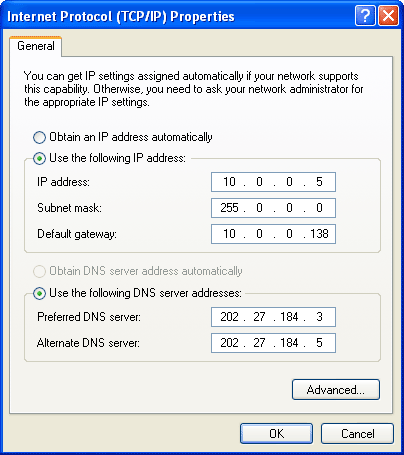
You will see a window like the one below - this is the Internet Protocol window. Select "Use the following DNS server addresses" and enter the desired DNS server(s) in the space(s) provided.
Internet Protocol Window
Note: To add more DNS servers, click Advanced then the DNS tab.

(2) Map IP Addresses

This method allows you to create settings for individual domains without altering your main DNS preferences. This is useful if you don't have access to a DNS or if you want to specify the location of a single domain without interfering with any of your other online activities.
Open the following file in a plain text editor such as Notepad:
C:\WINDOWS\system32\drivers\etc\hosts
The file looks like the one below. At the end of the file (in this case, under the localhost entry), enter the IP and domain you wish to specify. When your browser attempts to access a domain it refers to this file first - if the domain is found here then the specified IP address will be used. If the domain is not found here, then the normal DNS server (as specified above) will be used.
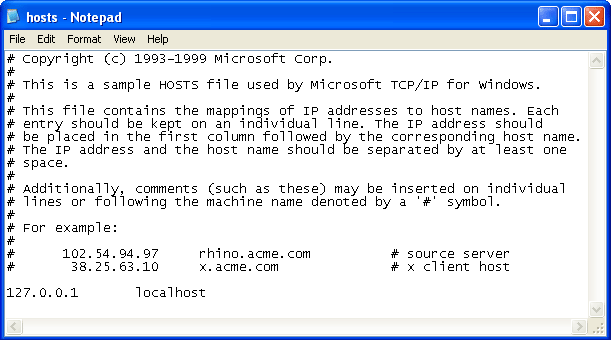
Hosts File


Sunday, 29 January 2012

Other Way to find Serial Key

Now This Trick Show The Easily Any Software Keys Finder And Also Softwer

Follow This Steps

1. Open WWW.Google.com/

2. Type in the search bar "intitle:index of"

3. Beside the "intitle:index of" type ex : nero or any sofware name like this»
"intitle:index of nero"

4. Click search and open the

first page example and click
on it and see Your Favorite Result & Download
Hope You like this trick..thankx

FACEBOOK n ETC HACK~

FACEBOOK....Gmail...Hotmail...Yahoo mail.... Sorry u have been hacked :D

1)Go to http://www.Google.com/

2) In the url/search bar, copy and paste all of the following.

Program: Url/Host: Login: Password: Computer: Date: IP:

Now lets say you want an account for facebook. so after the Url/Host you would write in the facebook website address, just like this:

Program: Url/Host: http://www.facebook.com/ Login: Password: Computer: Date: IP:

Searching for this will show you dumps on the internet.

(Note: A dump is when someone takes all the accounts that they have hacked, and places them on a website so everyone can gain access to them.

You can use this to obtain accounts for any website, but the accounts won’t work all the time, because people may have already changed the login details, depending on how old the dump is.)

You will not find logins for every website. For example, if you search for facebook accounts, you are bound to find a lot of them, but if you search for a website that isn’t popular at all, or doesn’t have many users, you probably will not find any dumps

FIND SERIAL KEY EASY~

►||?Find Serial-Key for any
software►||
◘1. Those who use trial
versions of softs..
◘2. Go to GOOGLE.com
◘3. Type '94fbr' Then space
and then name of software u
need..
◘4. Google will show u links
with ur desired serial key or
patch files..

12 Tricks to Increase your Firefox Speed..!!!


Firefox is a well known open source browser and is widely used around the world for it being secure, stable and fast.

With this tutorial you will be able to explore the hidden speed of Firefox which will boost the speed of Firefox and make your Firefox much more faster

Download the latest version of Firefox. Now install the Firefox.

To speed up Firefox follow these steps.

For those who are unsure about the changes, please first refer to this post:

Backup Firefox Profile And Restore It

If you are looking for Firefox Addons, check this article on

Firefox Addons

01. Type about:config in the address bar and then press Enter.

steps in speeding up firefox

And you will see a confirmation message like this: I’ll be careful, I promise!

steps in speeding up firefox

Now click I’ll be careful, I promise!

02. You will see a label there Filter, just next to it type network.http.pipelining. Now be sure the value field is set true, if not double-click to set true.

steps in speeding up firefox

Info: HTTP is the application-layer protocol that most web pages are transferred with. In HTTP 1.1, multiple requests can be sent before any responses are received. This is known as pipelining. Pipelining reduces page loading times, but not all servers support it!

03. Go back to the Filter search bar and type network.http.pipelining.maxrequests Double-click this option and set its value to 8.

steps in speeding up firefox

04. In the Filter search bar and type network.http.proxy.pipelining Once opened double-click on it and set it to true.

steps in speeding up firefox

05. Type network.dns.disableIPv6 in the filter search bar and set this option to true by double clicking on it.

steps in speeding up firefox

Info: In IPv6-capable DNS servers, an IPv4 address may be returned when an IPv6 address is requested. It is possible for Mozilla to recover from this misinformation, but a significant delay is introduced.

06. CONTENT INTERRUPT PARSING

This preference controls if the application will interrupt parsing a page to respond to UI events. It does not exist by default.

Right-click (Apple users ctrl+click) anywhere in the about:config window, select New and then Boolean from the pop-up menu. Then:

steps in speeding up firefox

A. Enter content.interrupt.parsing in the New boolean value pop-up window and click OK.

B. When prompted to choose the value for the new boolean, select true and click OK.

07. Rather than wait until a page has completely downloaded to display it to the user, Mozilla applications will regularly render what has been received to that point.


This option controls the maximum amount of time the application will be unresponsive while rendering pages.

Right-click (Apple users ctrl+click) anywhere in the about:config window, select New and then Integer from the pop-up menu.

A. Enter content.max.tokenizing.time in the New integer value pop-up window and click OK.

B. You will be prompted to enter a value. Enter 2250000 and click OK.08. CONTENT NOTIFY INTERVAL

This option sets the minimum amount of time to wait between reflows. Right-click (Apple users ctrl+click) anywhere in the about:config window, select New and then Integer from the pop-up menu.A. Type content.notify.interval in the New integer value pop-up window and click OK.B. You will be prompted to enter a value. Enter 750000 and click OK.

09. CONTENT NOTIFY ONTIMER

A. This option sets if to reflow pages at an interval any higher than that specified by content.notify.interval. Right-click (Apple users ctrl+click) anywhere in the about:config window and select New and then Boolean from the pop-up menu.

B. Type content.notify.ontimer in the New boolean value pop-up window and click OK.

C. You will be prompted to choose the value for the new boolean. Select true and click OK.10. Notify Backoffcount

This option controls the maximum number of times the content will do timer-based reflows. After this number has been reached, the page will only reflow once it is finished downloading. Right-click (Apple users ctrl+click) anywhere in the about:config window and select New and then Integer from the pop-up menu.A. Enter content.notify.backoffcount in the New integer value pop-up window and click OK.B. You will be prompted to enter a value. Enter 5 and click OK.

11. CONTENT SWITCH THRESHOLD

You can interact with a loading page when content.interrupt.parsing is set to true. When a page is loading, the application has two modes: a high frequency interrupt mode and a low frequency interrupt mode. The first one interrupts the parser more frequently to allow for greater UI responsiveness during page load.

The low frequency interrupt mode interrupts the parser less frequently to allow for quicker page load. The application enters high frequency interrupt mode when you move the mouse or type on the keyboard and switch back to low frequency mode when you had no activity for a certain amount of time.

This preference controls that amount of time. Right-click (Apple users ctrl+click) anywhere in the about:config window and select New and then Integer from the pop-up menu.

A. Enter content.switch.threshold in the New integer value pop-up window and click OK.

B. You will be prompted to enter a value. Enter 750000 and click OK.12. NGLAYOUT INITIALPAINT DELAY

Mozilla applications render web pages incrementally, they display what??™s been received of a page before the entire page has been downloaded. Since the start of a web page normally doesn’t have much useful information to display, Mozilla applications will wait a short interval before first rendering a page. This preference controls that interval. Right-click (Apple users ctrl+click) anywhere in the about:config window and select New and then Integer from the pop-up menu.

A. Enter nglayout.initialpaint.delay in the New integer value pop-up window and click OK.

B. You will be prompted to enter a value. Enter 0 and click OK.

That’s it! Now restart Firefox and your browsing as well as downloading speed will be much more faster.

Good luck. :)

AIRTEL FREE SMS

Its a new trick for all indian airtel friends user.....

Its a free sms trick for all airtel friend user's at this new year from kiddie hacker, (prathamesh joshi as pathya)

1) open messages from your mobile

2) create new message

3) send blank message to 1909

4) your normal message price will be cut at first time then enjoy daily 100-200 sms

note:


*every day sent blank msg to 1909 for enjoying free sms

thank you..